
16 min read · AI Design · Free AI Design Tools
AI Design: How to Design With AI, the Best Free Tools and How to Get Better Results
Capio team
A practical guide to AI design. How AI is used in design, which tools are free, whether Canva AI is free, the best AI for each design job and how to get better results.
AI design means using AI tools to come up with, make, edit or test designs. That covers a lot of ground. A shop owner asking Canva for an Instagram post is doing AI design. So is a product team generating app screens in Figma, a marketer making a hero image in ChatGPT and a developer turning a sketch into a working web page.
The good news is that you can start for free and get useful results in an afternoon. The less advertised news is that "free" usually means a monthly allowance, the first result is rarely the one you use and the tool you pick matters less than knowing what job you're doing.
This guide answers the questions people actually ask about AI design, in a sensible order. It starts with what AI is used for, moves on to which tools are worth your time and what's genuinely free, then finishes with how to get results that don't look like everyone else's.
How is AI used in design?
AI now turns up at almost every stage of design work. In broad terms it does four things:
- Generates. Images, logos, layouts, app screens, icons, video and voiceovers from a written description.
- Edits. Removes backgrounds, erases objects, extends an image past its edges, resizes one design for every social platform, rewrites the text inside a layout.
- Suggests. Colour palettes, font pairings, layout options and alternative directions you might not have thought of.
- Builds. Turns a description or a sketch into a clickable prototype or working code.
Professional designers have moved fast. The AI in Design 2026 report from Designer Fund and Foundation Capital surveyed more than 900 designers in over 60 countries. As reported by instructional designer Devlin Peck, it found 91% use AI for design tasks every week, up from 54% a year earlier, and the average designer now uses seven off-the-shelf AI tools instead of three. About half have pushed AI-generated code into a live product. The report also found that unreliable output quality is still the biggest frustration, and that most designers learn AI from each other rather than from formal training. For structured learning in a business setting, explore Capio’s AI training for executives.
In product design the story goes back further than most people think. IBM points out that AI was already part of computer-aided design software in the 1990s, simulating real-world conditions so engineers could test products before building them. What's changed is that you no longer need specialist software or training to use it. You type what you want.
What are 5 uses of AI for design?
These are the five that save the most time for most people.
Ideas and moodboards. Ask for twenty directions for a café logo or ten moods for a product launch. Most will be wrong, and that's fine. The point is to see options quickly and react to them, which is far easier than starting from a blank page. Because you throw most of it away, the risk is low.
Images and graphics. Product shots on new backgrounds, blog headers, social posts, illustrations, posters and flyers. Modern image models are much better at keeping a character or style consistent across a series, which makes brand work more realistic than it was a couple of years ago.
Photo editing. Background removal, object removal, extending a photo to fit a different shape, upscaling a small image and fixing lighting. These "boring" features are often the most useful, and many are free.
Layouts, websites and app screens. Tools such as Figma Make, Google Stitch, Uizard and Relume turn a description into wireframes, screens or whole website layouts. They get you to a first draft you can react to in minutes rather than days.
Prototypes and code. Tools such as v0, Lovable and Claude turn a design idea into a working, clickable page. Designers increasingly test real prototypes instead of static mockups because people react more honestly to something they can click.
A few more that deserve a mention: resizing one design into every social format, writing the copy inside a design, generating voiceovers and video, checking colour contrast for accessibility and predicting where people will look on a page.
Is there a ChatGPT for design?
Yes, and ChatGPT itself is one of them. You can describe an image in plain English and ChatGPT will make it, then change one detail at a time when you ask ("make the background darker", "move the logo to the left", "remove the second person"). That conversational editing is its real strength. It's very good for quick concepts, social images and talking through design ideas.
But "a ChatGPT for design" can mean three different things, and the best tool depends on which one you mean.
Chat to get an image. ChatGPT, Google Gemini (its image model is often called Nano Banana) and Microsoft Copilot all let you describe and refine images in conversation. Gemini's image model is known for getting text inside images right and keeping characters consistent.
Chat inside a design editor. Canva's AI, Adobe Express and Figma's AI let you prompt inside a proper design tool, so you can then move, resize and edit every element by hand. This is usually what people really want, because a flat image from a chatbot is hard to adjust.
Chat to build a website or app. Figma Make, Google Stitch, v0, Lovable and Claude turn a conversation into screens or working code.
So if you want "ChatGPT for design", start with ChatGPT or Gemini for single images, and use Canva or Figma when you need something you can edit properly.
Which is the best AI for design?
There isn't one. A tool that's brilliant at one job is often mediocre at the next, which is why professionals use several. Pick by the job.
| What you want to make | Good starting tools | Worth knowing |
|---|---|---|
| Social posts, flyers, presentations, everyday graphics | Canva, Adobe Express, Microsoft Designer | Canva is the easiest all-rounder, but results can look template-ish |
| Standalone images and illustrations | ChatGPT, Gemini (Nano Banana), Midjourney, Ideogram | Midjourney gives the most striking style but has no free tier |
| Images for ads and client work | Adobe Firefly | Trained on licensed and public-domain content and cleared for commercial use |
| Logos and brand basics | Design.com, Canva | Fine for a quick start, then refine by hand |
| App and website screens | Figma Make, UX Pilot, Uizard, Google Stitch | Expect styles to drift between screens |
| Website layouts and sitemaps | Relume, Framer AI | Framer publishes the site for you but locks you into its platform |
| Prototypes and working code | v0, Lovable, Claude | Great for testing ideas; real products still need a code review |
| Video and voice | Runway, Synthesia, ElevenLabs | Credits run out quickly at high quality |
If you only pick one, pick by who you are:
- Small business owner or marketer: Canva. It covers most everyday design and its free plan is generous. For a broader business-tool comparison, see the best AI tools for small businesses.
- Need standalone images: ChatGPT or Gemini to start; Midjourney if style matters and you're happy to pay.
- Product or UX designer: Figma with Figma Make, because it fits the workflow you already have.
- Making images for paid ads or clients: Adobe Firefly, for the clearer commercial terms.
- Want a working website or app: v0, Lovable or Claude.
Can AI design me an image?
Yes. Describe what you want and an image generator will produce it in seconds. ChatGPT, Gemini, Microsoft Copilot and Designer, Canva, Adobe Firefly, Midjourney and Ideogram all do this, and most have some free allowance.
What makes the difference is the description. Compare:
A logo for a coffee shop
 Result from the basic prompt: A logo for a coffee shop.
with:
A flat vector logo for a small neighbourhood coffee shop called "Ember". A simple coffee cup with a single flame rising from it as steam. Warm orange and dark brown on a cream background. Clean, modern, no gradients, works at small sizes.
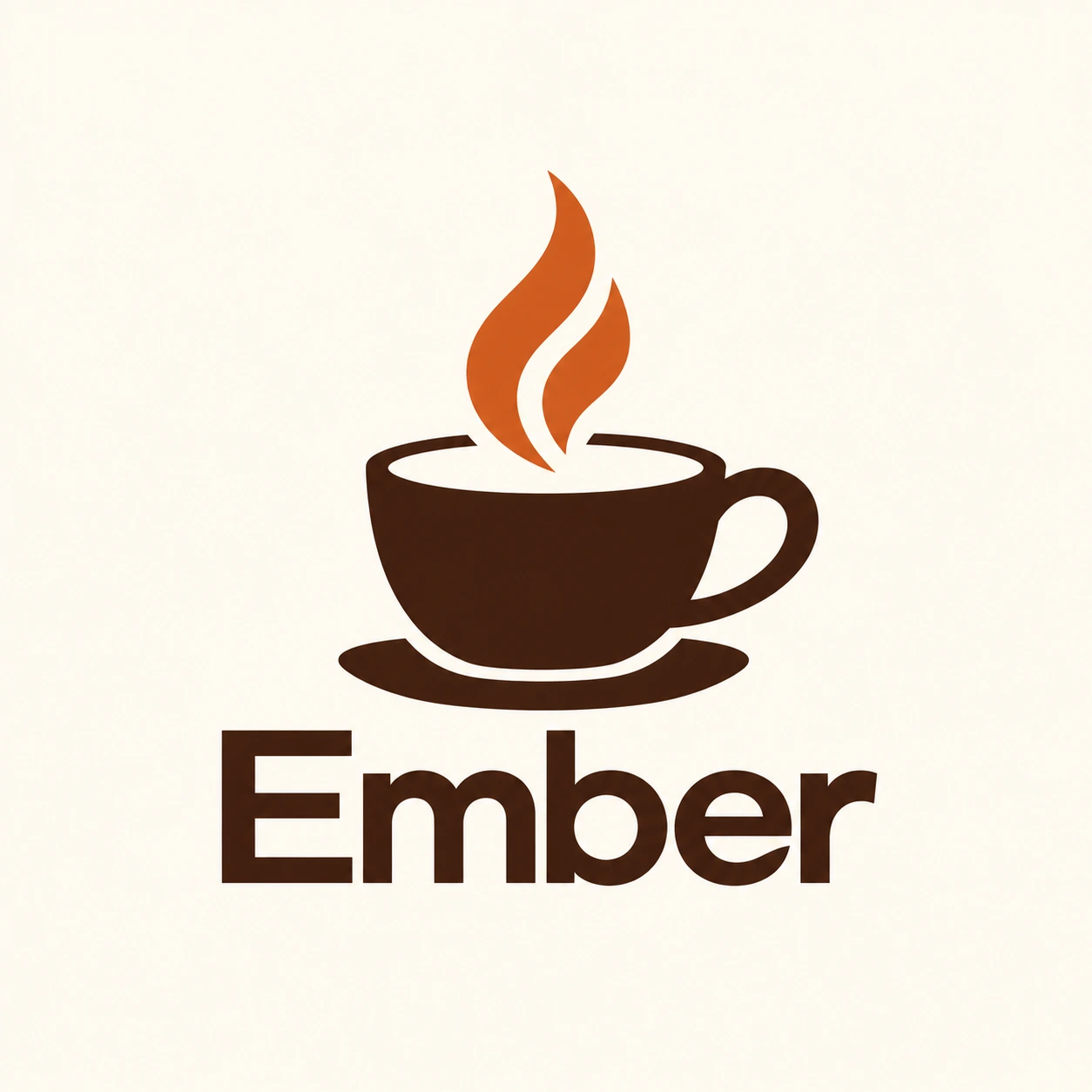 Result from the detailed Ember prompt.
The second gives the AI a subject, a style, colours, the exact text in quotation marks and how it will be used. You'll get something much closer on the first try.
Expect to iterate. Ask for a few versions, pick the best and then change one thing at a time. Look closely before you use anything: AI images still slip on hands, small text, product details, reflections and logos.
Is there a free AI design tool?
Plenty. Almost every major tool has a free plan. The catch is that free plans run on allowances, so you get a set number of AI uses per day or month, and some features are kept for paying customers.
Here are the free options worth trying, with what you get as far as we could confirm in October 2026. Allowances change often, so check the tool's own pricing page.
- Canva Free. Many AI editing tools, plus a monthly allowance for AI generation. Details in the Canva section below.
- Figma Starter. Free, with Figma AI and Figma Make included on a credit allowance (reported at 500 credits a month, capped at 150 a day).
- Adobe Firefly. A free plan with a daily allowance of generations. Paid plans add thousands of monthly credits.
- Adobe Express. A free plan with AI features for quick branded content.
- ChatGPT. Free users can generate images, but with tighter limits than paid plans. OpenAI doesn't publish an exact free figure; users commonly report two or three images a day.
- Google Gemini. Free access to its image model, with limits.
- Microsoft Designer. Free with a Microsoft account, using a credit system for AI generation since Microsoft ended unlimited free generations.
- Google Stitch. Free while in beta for generating app and web screens, with daily credits.
- Uizard, Relume, v0 and Lovable. All have free tiers, but they're small. Uizard's free plan, for example, is reported at three AI generations a month.
- Design.com. Free AI generators for logos, business cards, posters and flyers. Check what you get before downloading, because the page doesn't spell out where free ends.
Which AI is 100% free?
Honestly, almost none of the well-known ones. Running AI models costs money, so nearly every company limits free use somehow: a daily cap, a monthly credit allowance, lower quality, watermarks, slower generation or premium features held back. Midjourney has no free tier at all.
The closest things to completely free are:
- Non-generative AI editing tools, such as Canva's background remover and magic eraser, which don't count against Canva's monthly AI allowance.
- Open-source image models you run on your own computer. Stable Diffusion and similar models can be downloaded and used without paying per image. The trade-off is that you need a reasonably powerful computer, ideally with a good graphics card, some technical patience and a bit of time to learn the setup.
- Several free allowances combined. If you use Canva's allowance, a few ChatGPT images, Gemini, Firefly's daily generations and Microsoft Designer, you get a lot of free output each month.
For occasional use, free allowances are plenty. If you design every day, the free plans are really trials, and a paid plan at roughly $10 to $20 a month will save you more in time than it costs.
Is Canva AI free to use?
Partly. Canva's AI tools fall into two groups, and only one has a limit.
Free Canva users get a set of AI editing tools that don't use up any allowance, including Magic Write, Background Remover, Magic Eraser and Magic Expand. Then there are allowance-based tools, such as image generation and Magic Design, which share one monthly pool.
As of mid-2026, the free plan's pool was reported at up to 200 standard or 20 premium AI uses a month, with five free generations a month in Dream Lab, Canva's image generator. The newest and heaviest features, such as text-to-video, aren't included.
Canva Pro raises the pool to up to 2,000 standard, 200 premium and 20 of the top-tier uses a month, and adds brand kits and one-click resizing. It was listed at $144 a year, about $12 a month, though the price varies by country.
For most individuals and small businesses, the free plan is a perfectly good place to start. Upgrade when you hit the limits regularly or need your brand kit applied automatically.
How can I create designs for free?
You can make professional-looking designs without spending anything if you combine a few tools sensibly.
Start from a template. Canva, Adobe Express and Microsoft Designer have thousands of free templates. Starting from one beats generating a whole design from scratch, because the layout, spacing and font pairing are already done.
Generate only what you need. Use your free AI allowance for the bits a template can't give you, such as a unique image, illustration or background. Use ChatGPT, Gemini or Firefly for these and save your Canva allowance for editing.
Use the free editing tools heavily. Background removal, erasing and expanding images are often unlimited and do a lot of the heavy lifting.
Set up your brand basics once. Pick two fonts, three or four colours and a logo, and stick to them. Consistency makes free designs look professional more than any single tool does.
Use free assets. Free stock photo sites and icon libraries fill gaps without using AI credits.
Check before you download. Some free plans add watermarks, limit download quality or only publish to the tool's own web address. Framer's free plan, for instance, only publishes to a Framer subdomain.
How can I design with AI?
Here's a simple process that works whether you're making a poster or an app screen.
Write a short brief first. Who is it for, what should it make them do, where will it appear and what size does it need to be. Two or three sentences is enough. This one step improves AI output more than any prompting trick.
Gather references. Collect a few images, websites or designs you like. Many tools let you upload references, and they help the AI far more than adjectives such as "modern" or "clean".
Choose the tool for the job. Use the table above. Don't force a chatbot to do an editor's job.
Generate several options. Ask for three to five versions. Pick the strongest direction rather than polishing the first one you got.
Refine one thing at a time. Change the colour, then the layout, then the text. Asking for five changes at once usually breaks something that was working.
Finish by hand. Move the result into an editor such as Canva, Figma or Photoshop. Fix the text, spacing, alignment and brand colours yourself. This is where AI designs start looking like your designs. Explore Capio’s case studies for examples of applying AI to real business workflows.
Check before you publish. Look for mistakes in text, hands, logos and product details. Check colour contrast so it's readable. Make sure you're allowed to use the result commercially.
Product teams follow a fuller version of the same loop. IBM describes AI supporting each stage of product design: researching user behaviour, brainstorming mockups and wireframes, building interactive prototypes, testing variations against each other and keeping the experience consistent after launch.
How to make AI design better?
Most disappointing AI designs come from vague requests and stopping too early. These habits fix most of it.
Be specific about the visual details. Subject, style (flat vector, watercolour, photographic, 3D), mood, colours, composition, lighting and aspect ratio. "Product photo of a ceramic mug on a light oak table, soft morning window light from the left, shallow depth of field, square format" will beat "nice mug photo" every time.
Put exact text in quotation marks. And keep it short. Models handle a few words well and paragraphs badly. For anything longer, add the text yourself in an editor.
Say what you don't want. "No gradients", "no people", "no text", "plain background". It saves rounds of corrections.
Give it your brand. Upload your logo and colours, use Canva's brand kit or describe your palette precisely. For screens, give the tool your design system or existing screens to follow.
Use reference images. One good reference does more than a paragraph of adjectives.
Keep series short and consistent. App and website generators tend to drift in style after a handful of screens. UX Pilot's review found visual consistency in some tools slipping after about five to seven screens. Generate in small batches and reuse what worked.
Plan the structure before asking for screens. Tools such as Figma Make do much better when you've already decided the pages, the flow and what goes on each screen.
Edit like a designer. Tighten the spacing, line things up, cut clutter and limit the fonts. AI gets you most of the way. The last part is judgement.
Avoid the "AI look". Default settings produce recognisable, generic results. Push the style with references, mix AI images with real photos and add your own details. Some brands avoid AI-generated people altogether because audiences spot them and trust drops.
Test it on real people. Ask a few customers or colleagues which version they prefer and why. That beats your own opinion and the AI's.
Can you use AI designs for your business?
Usually yes, but read the terms. Most paid plans allow commercial use, while some free plans are more restrictive, and some tools make everything you create on the free plan public.
Two things to watch:
Ownership. In the US, the Copyright Office's position is that copyright needs human authorship, so purely AI-generated images get weak or no protection. Your own selection, arrangement and substantial editing can be protected. Rules differ by country. In practice, if a design matters to your brand, such as your logo, add real human work to it and keep your sketches and edit history.
Safety for ads and client work. Adobe trains Firefly on licensed and public-domain content, says its outputs can be used commercially and offers legal cover for some business customers. Tools trained on scraped web images carry more uncertainty. For high-stakes work, take legal advice. Establish clear review and approval rules through AI governance.
Disclosure is also becoming more common. Some tools, including Firefly, attach Content Credentials to their images, a kind of label recording that AI was involved, and some clients now ask for it.
Will AI replace designers?
Not on the evidence so far. The designers surveyed in the AI in Design 2026 report are using AI more, not disappearing, and many are taking on more product and engineering work. What's changing is the job: less pushing pixels and more deciding what's good, giving direction and checking the output. Hiring managers in that report wanted AI fluency alongside a high bar for craft and taste, not instead of it.
For non-designers, AI lowers the bar to making something decent. It doesn't make every result good. The people who get the best results are the ones who know what good looks like and keep editing until they get there.
Where does this information come from?
This guide draws on the pages currently ranking for "AI design", checked in October 2026, plus pricing sources for the free plans. Some sources are written by companies that sell AI design tools, which we've noted.
- UX Pilot, Best AI UI generators (UX Pilot sells one of the tools reviewed): Read the source
- Designer Fund and Foundation Capital, AI in Design Report 2026: Read the source
- Devlin Peck, AI in Design 2026 (updated July 2026; the author discloses a commercial interest in his own AI product): Read the source
- IBM, What is AI product design? (October 2025): Read the source
- Design.com, AI design tools: Read the source
- Canva AI pricing and free plan limits (June 2026): Read the source
- Adobe Firefly plans FAQ: Read the source
- ChatGPT free image limits (user-reported figures): Read the source
- Microsoft Designer credit changes (September 2026): Read the source
- Figma pricing and AI credits: Read the source